
Sydium
Drafts, schedules and tracks social media posts across ten platforms from ChatGPT.
Images: sydium.com
What Sydium can do in ChatGPT
Write, schedule and track social posts.
Captions In Your Voice
Drafts learned from the posts you already published.
Ten Platforms
Schedule or publish to Instagram, TikTok, LinkedIn and more.
Performance Checks
See how your accounts and posts did over time.
Queue Management
Edit, reschedule or cancel posts that have not gone out.
Daily Ideas
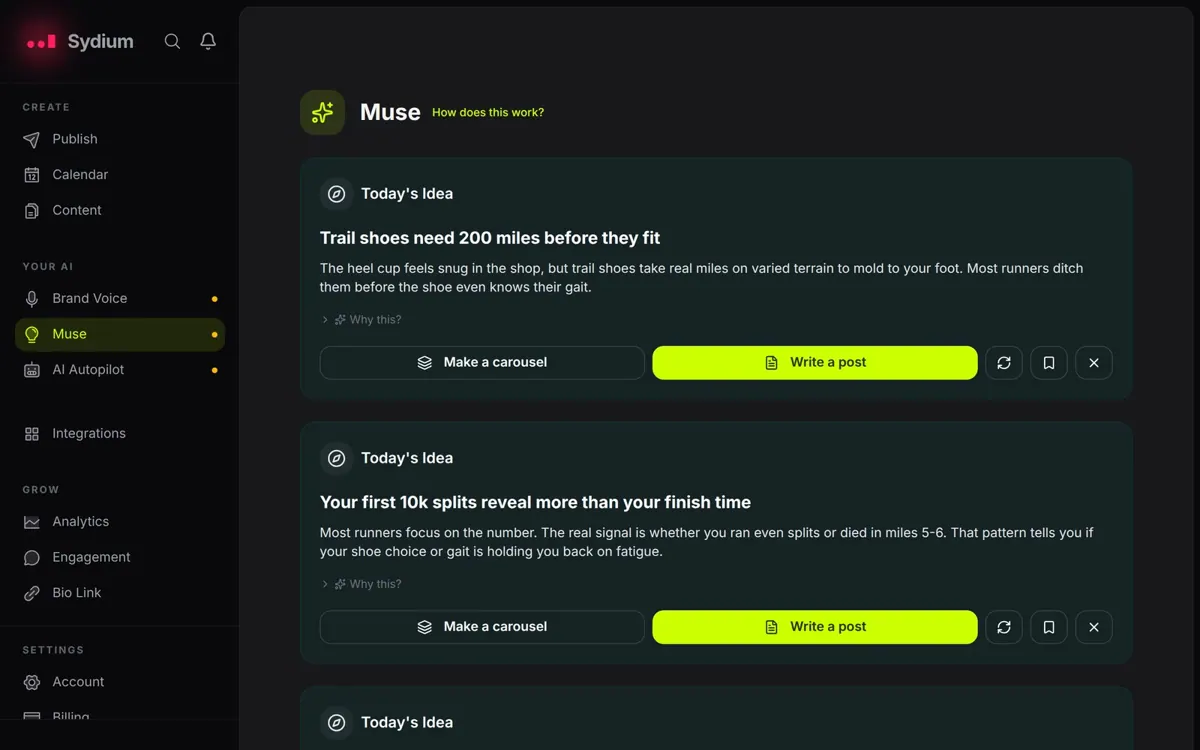
Pull today's suggested content idea into the chat.
You stay in control
You approve access, and you can disconnect Sydium at any time.
Apps 1
What Sydium does in ChatGPT
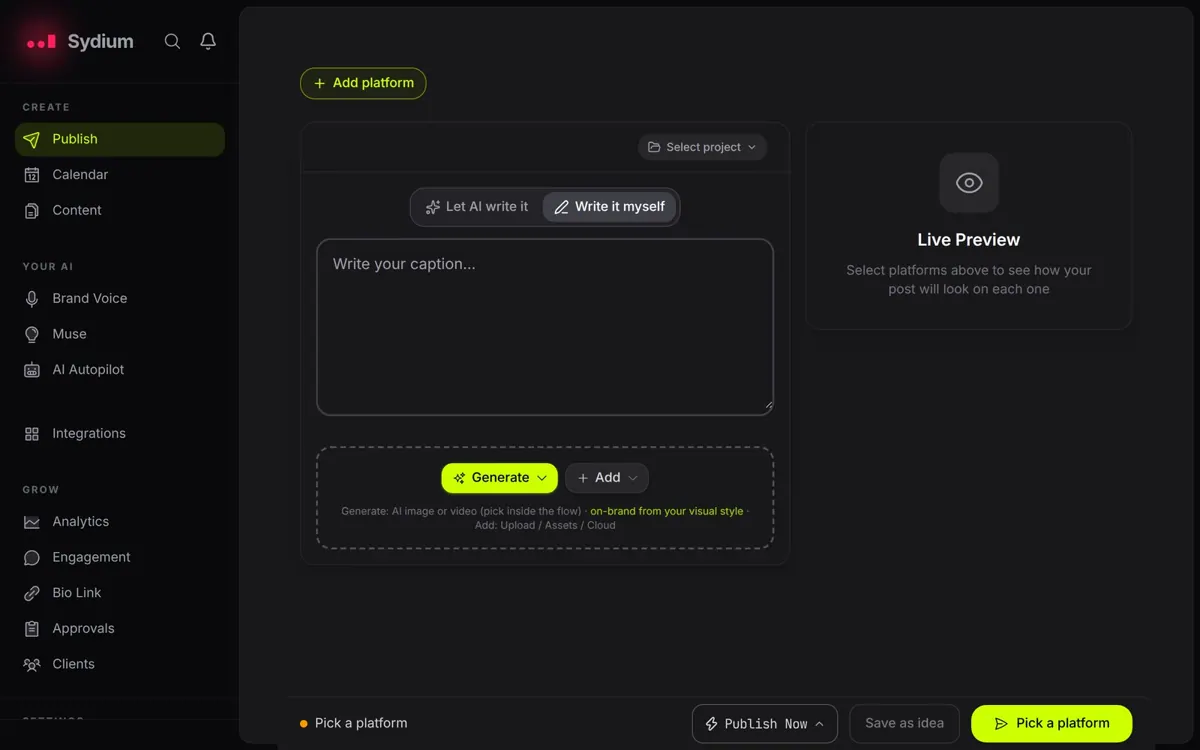
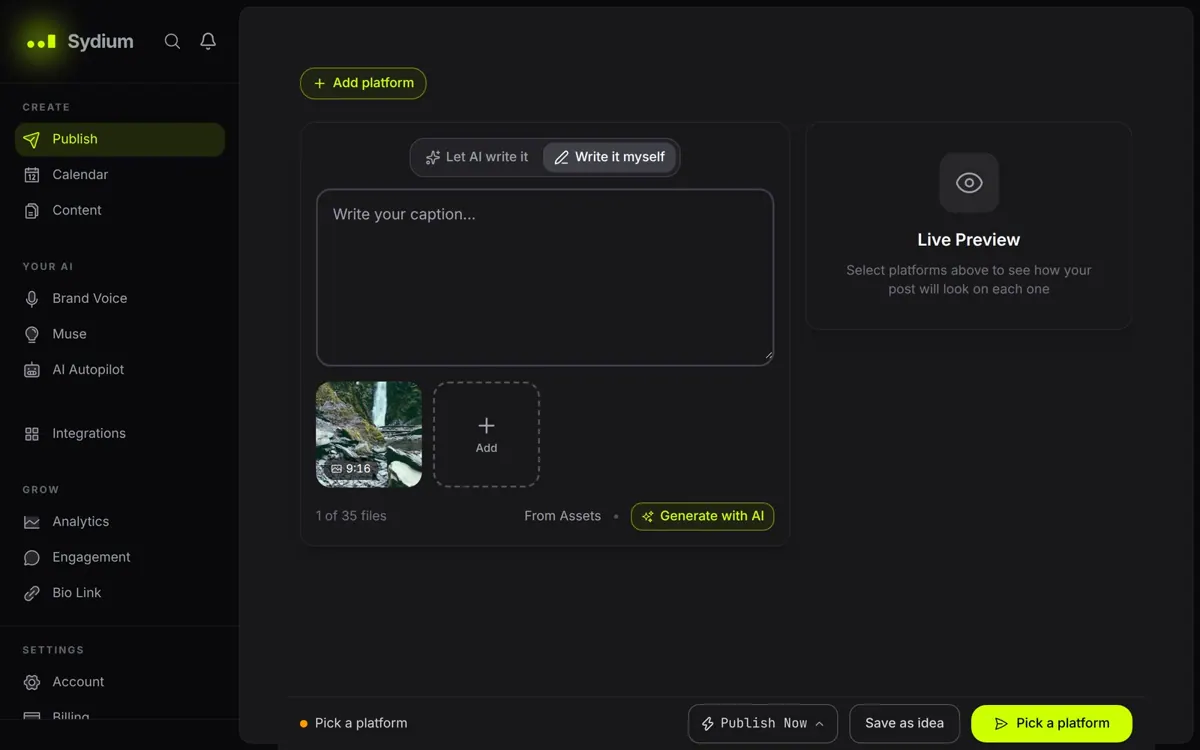
The Sydium plugin connects ChatGPT to an existing Sydium workspace for social media. It can write captions that match how you already write, based on posts you have published, and then schedule or publish them to up to ten platforms, including Instagram, TikTok, YouTube, LinkedIn, X and Facebook.
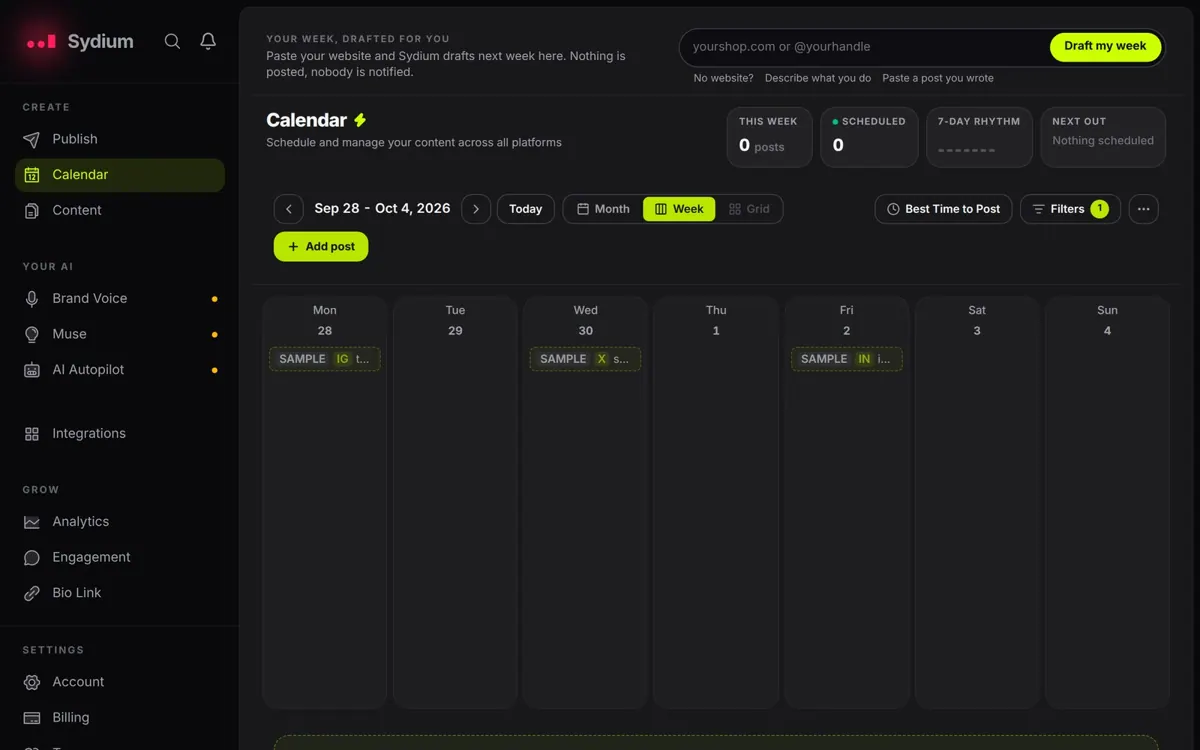
It also handles the work after posting. You can ask how your accounts did over a period, look at what is queued for the coming days, and edit, reschedule or cancel anything that has not gone out yet. It can also hand you the content idea Sydium suggests for today.
You need an active Sydium plan or trial, and connecting from ChatGPT does not start one; plans are managed on the Sydium website. Agencies can work on behalf of single clients with the same team permissions they have in Sydium. Before anything goes onto a public feed, ChatGPT asks you to confirm.
Who it is for
- Small businesses posting on several networks
- Agencies managing client accounts
- Creators planning a content calendar
How to add Sydium to ChatGPT
- Open the Sydium listing in ChatGPT ↗.
- Click Install plugin.
- Sign in to your Sydium account when asked and approve the access it requests.
- Start a chat and ask for what you need, mentioning Sydium if ChatGPT does not pick it up.
- To stop, disconnect Sydium under apps in your ChatGPT settings.
Questions about Sydium
What is the Sydium ChatGPT plugin?
The Sydium plugin connects ChatGPT to an existing Sydium workspace for social media. It can write captions that match how you already write, based on posts you have published, and then schedule or publish them to up to ten platforms, including Instagram, TikTok, YouTube, LinkedIn, X and Facebook. It is listed in ChatGPT's plugin marketplace under Productivity.
What can I ask Sydium to do in ChatGPT?
For example: "What is on my posting schedule this week?", "Write a LinkedIn post about our new hire in my usual tone", "How did my Instagram account do over the last 30 days?".
Who makes the Sydium plugin for ChatGPT?
The ChatGPT listing names Parhelion as the developer. The version listed on 8 October 2026 was 1.0.1.
How do I add Sydium to ChatGPT?
Open the Sydium listing in ChatGPT, click Install plugin, sign in to your Sydium account and approve the access it asks for. Then ask for what you need in a chat, mentioning Sydium if ChatGPT does not pick it up.
Can Sydium change things in my account, or only read?
It reads your Sydium workspace, published posts and performance data, and can schedule, publish, edit, reschedule or cancel posts after you confirm public actions.
Who is the Sydium plugin for?
Small businesses posting on several networks, agencies managing client accounts and creators planning a content calendar.
Which platforms can Sydium post to?
Instagram, TikTok, YouTube, LinkedIn, X, Facebook, Pinterest, Bluesky, Threads and Mastodon.
Do I need a Sydium plan to use it?
Yes. It needs an active plan or trial, and connecting in ChatGPT does not start one.
Will it post without asking me?
No. The listing says ChatGPT confirms with you before anything is published to a public feed.
Does Sydium see my ChatGPT chats?
When Sydium is connected, ChatGPT may share the parts of your chats and memories that matter for a request with Sydium. What Sydium does with that data falls under its own terms and privacy policy. ChatGPT keeps your training-data settings, and you can disconnect at any time.
How do I disconnect Sydium from ChatGPT?
Open your ChatGPT settings, go to apps, and disconnect Sydium. You can reconnect later from the listing.
What are alternatives to Sydium in ChatGPT?
Similar plugins in the ChatGPT marketplace include Metricool, Postiz and SocialHub. Each has its own page in this directory.


Privacy and your data
When Sydium is connected, ChatGPT may share the parts of your chats and memories that matter for a request with Sydium. What Sydium then does with that data falls under its own terms and privacy policy, not only OpenAI's. ChatGPT keeps your training-data settings for data that comes from connected apps, and you can disconnect at any time.
Sydium privacy policy ↗Sydium terms ↗OpenAI: apps in ChatGPT ↗